
8.0 KiB
Quickstart
👏 Welcome to Qwen Code!
This quickstart guide will have you using AI-powered coding assistance in just a few minutes. By the end, you'll understand how to use Qwen Code for common development tasks.
Before you begin
Make sure you have:
- A terminal or command prompt open
- A code project to work with
- A Qwen Code account
Step 1: Install Qwen Code
To install Qwen Code, use one of the following methods:
NPM(recommended)
Requires Node.js 20+, you can use node -v check the version. If it's not installed, use the following command to install it.
curl -qL https://www.npmjs.com/install.sh | sh
If you have Node.js or newer installed:
npm install -g @qwen-code/qwen-code@latest
Homebrew (macOS, Linux)
brew install qwen-code
GitHub
# clone GitHub project
git clone https://github.com/QwenLM/qwen-code.git

# go to qwen-code folder
cd qwen-code

# install npm
npm install

# install qwen-code
npm install -g @qwen-code/qwen-code@latest
Step 2: Log in to your account
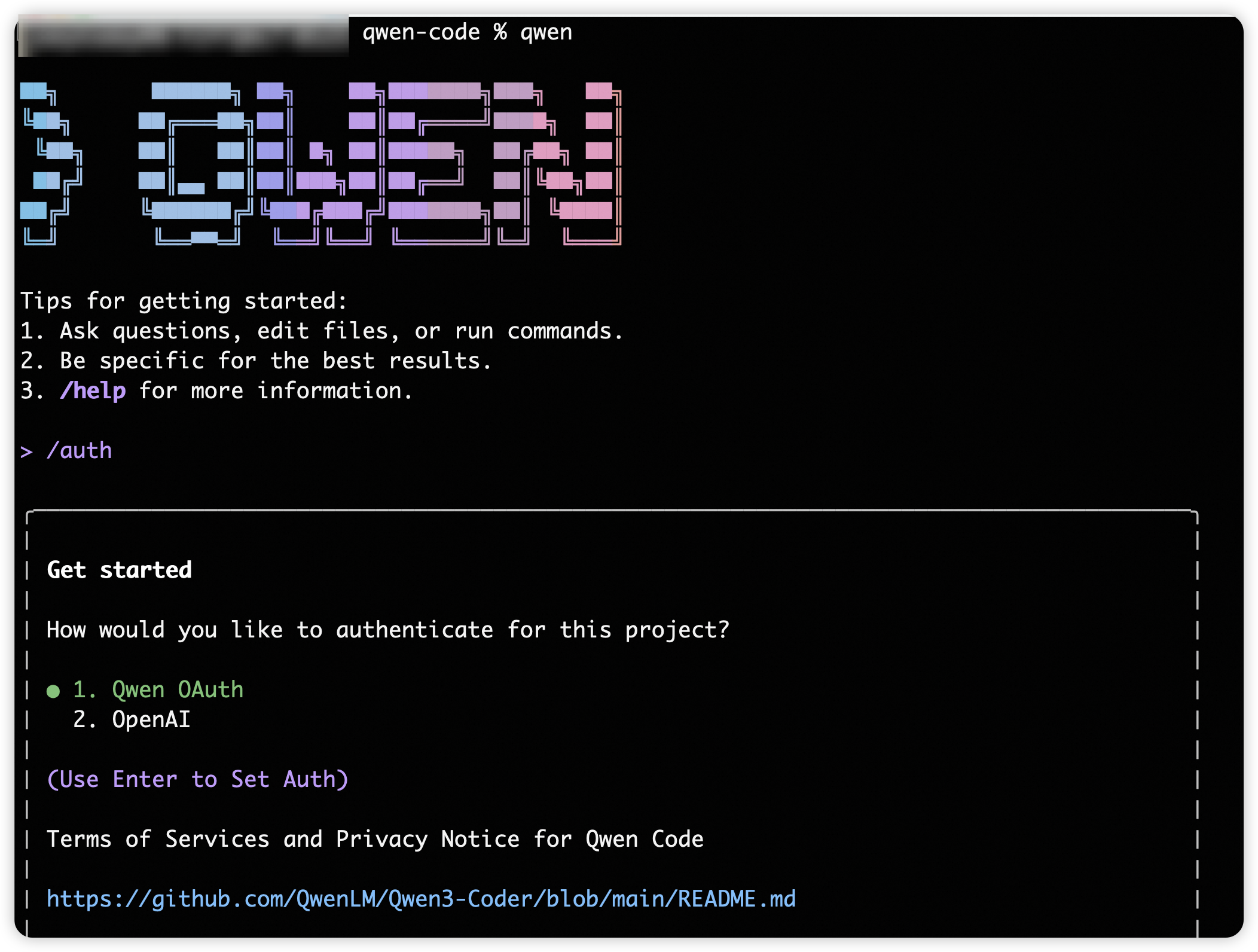
Qwen Code requires an account to use. When you start an interactive session with the qwen command, you'll need to log in:
# You'll be prompted to log in on first use
qwen
# Follow the prompts to log in with your account
/auth
Select Qwen OAuth, log in to your account and follow the prompts to confirm. Once logged in, your credentials are stored and you won't need to log in again.
Note
When you first authenticate Qwen Code with your Qwen account, a workspace called "qwen-code" is automatically created for you. This workspace provides centralized cost tracking and management for all Qwen Code usage in your organization.
Tip
If you need to log in again or switch accounts, use the
/authcommand within Qwen Code.
Step 3: Start your first session
Open your terminal in any project directory and start Qwen Code:
# optiona
cd /path/to/your/project
# start qwen
qwen
You'll see the Qwen Code welcome screen with your session information, recent conversations, and latest updates. Type /help for available commands or /resume to continue a previous conversation.
Caution
After logging in (Step 2), your credentials are stored on your system. If you need OpenAI API authentication, you can refer to Authentication.
Chat with Qwen Code
Ask your first question
Let's start with understanding your codebase. Try one of these commands:
what does this project do?
Qwen Code will analyze your files and provide a summary. You can also ask more specific questions:
what technologies does this project use?
where is the main entry point?
explain the folder structure
You can also ask Qwen Code about its own capabilities:
what can Qwen Code do?
how do I use slash commands in Qwen Code?
can Qwen Code work with Docker?
Note
Qwen Code reads your files as needed - you don't have to manually add context. Qwen Code also has access to its own documentation and can answer questions about its features and capabilities.
Make your first code change
Now let's make Qwen Code do some actual coding. Try a simple task:
add a hello world function to the main file
Qwen Code will:
- Find the appropriate file
- Show you the proposed changes
- Ask for your approval
- Make the edit
Note
Qwen Code always asks for permission before modifying files. You can approve individual changes or enable "Accept all" mode for a session.
Use Git with Qwen Code
Qwen Code makes Git operations conversational:
what files have I changed?
commit my changes with a descriptive message
You can also prompt for more complex Git operations:
create a new branch called feature/quickstart
show me the last 5 commits
help me resolve merge conflicts
Fix a bug or add a feature
Qwen Code is proficient at debugging and feature implementation.
Describe what you want in natural language:
add input validation to the user registration form
Or fix existing issues:
there's a bug where users can submit empty forms - fix it
Qwen Code will:
- Locate the relevant code
- Understand the context
- Implement a solution
- Run tests if available
Test out other common workflows
There are a number of ways to work with Claude:
Refactor code
refactor the authentication module to use async/await instead of callbacks
Write tests
write unit tests for the calculator functions
Update documentation
update the README with installation instructions
Code review
review my changes and suggest improvements
Tip
Remember: Qwen Code is your AI pair programmer. Talk to it like you would a helpful colleague - describe what you want to achieve, and it will help you get there.
Essential commands
Here are the most important commands for daily use:
| Command | What it does | Example |
|---|---|---|
qwen |
Start interactive mode | qwen |
qwen-code "task" |
Run a one-time task | qwen-code "fix the build error" |
qwen-code -p "query" |
Run one-off query, then exit | qwen-code -p "explain this function" |
qwen-code -c |
Continue most recent conversation | qwen-code -c |
qwen-code -r |
Resume a previous conversation | qwen-code -r |
qwen-code commit |
Create a Git commit | qwen-code commit |
/clear |
Clear conversation history | /clear |
/help |
Show available commands | /help |
quit or Ctrl+C |
Exit Qwen Code | /quit |
See the CLI reference for a complete list of commands.
Pro tips for beginners
-
Be specific with your requests
- Instead of: "fix the bug"
- Try: "fix the login bug where users see a blank screen after entering wrong credentials"
-
Use step-by-step instructions
- Break complex tasks into steps:
1. create a new database table for user profiles 2. create an API endpoint to get and update user profiles 3. build a webpage that allows users to see and edit their information -
Let Claude explore first
- Before making changes, let Claude understand your code:
analyze the database schemabuild a dashboard showing products that are most frequently returned by our UK customers -
Save time with shortcuts
- Press
?to see all available keyboard shortcuts - Use Tab for command completion
- Press ↑ for command history
- Type
/to see all slash commands
- Press
What's next?
Now that you've learned the basics, explore more advanced features:
Step-by-step guides for common tasks Master all commands and options Customize Qwen Code for your workflow Run tasks asynchronously in the cloudGetting help
- In Qwen Code: Type
/helpor ask "how do I..." - Documentation: You're here! Browse other guides
- Community: Join our GitHub Discussion for tips and support